
How to turn an image into a video with AI, without it morphing
Give the model less to invent: a clean still that already looks like the first frame, a short prompt that describes only the motion, one main move per clip, and an end frame when you know where the shot should land. This guide sets out what Runway, Google and Kling each advise, as of October 2026, and a routine that works across them.
Morphing means the model had too much to invent
Image to video is a trade. The still has already settled the composition, the lighting and who’s in the shot; the model’s job is to add the motion. Runway’s Gen-4 Video Prompting Guide (read 8 October 2026) tells you to use the prompt to “focus on describing motion”.
Faces that melt, hands that multiply and backgrounds that slide are what happens when that job gets too big. The model is asked for a sweeping camera move and a dramatic action in the same few seconds, or it’s handed a cluttered picture, or the prompt asks for something the picture contradicts. Even the makers say where their models struggle: ByteDance’s Seedance 2.5 launch post (31 July 2026) names “the physical plausibility of complex motions” and scenes where several subjects interact as the areas still to improve.
So almost every fix below does the same thing: it gives the model less to guess.
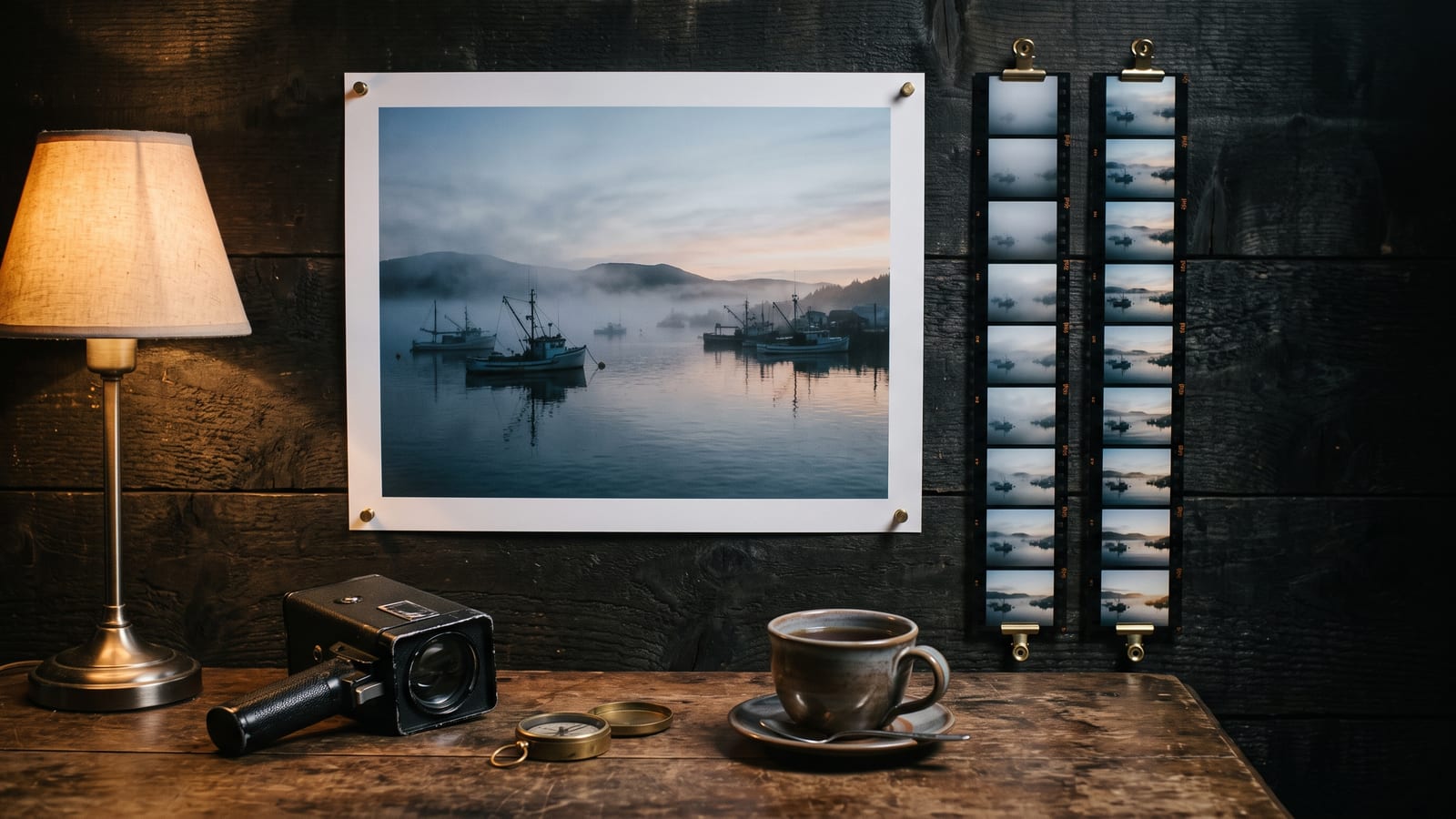
Start with a still that already looks like frame one
Google’s Veo 3.1 documentation says the model “uses the input image as the initial frame”, and its advice is to “select an image closest to what you envision as the first scene of your video” (Gemini API docs, read 8 October 2026). What makes a good start frame:
- Clean. Runway asks for a “high-quality input image, free of visual artifacts”. A sixth finger or a smudged logo in the still becomes a moving sixth finger.
- One clear subject. Runway’s photo to video guide (5 November 2025) starts with “a photo with a clear, intentional subject”.
- Room to move. If the camera is going to push in, the subject should be framed so a push makes sense; if it’s going to pan, there should be something worth panning to. Runway’s guide suggests matching the move to the composition: push or orbit for a centred portrait, a pan for a landscape, a tilt for tall architecture.
- No motion cues that fight your prompt. A picture with motion blur, flying dust or a mid-stride pose already implies movement. Ask for stillness against that and you’re asking the model to argue with its own first frame.
- The right shape. Veo 3.1 makes 16:9 or 9:16 clips, so make the picture in the shape you want the video to be.
Every clip in our own showreel was made this way: a still made with GPT Image 2.5, then moved with Kling 3.0 on Higgsfield.
Write the motion, not the picture
The commonest mistake is a prompt that describes the image again: “a woman with red hair in a green coat standing on a pier at sunset”. The model can see that. Runway’s Gen-4 guide suggests referring to people in general terms, “the subject” or a pronoun, so the model spends its effort on movement rather than reinterpreting details.
Runway’s photo to video guide gives a structure that works well across models:
Camera movement + scene action + atmosphere, in about 20 to 40 words.
For example, for a portrait by a window: “Slow push in. The subject turns towards the window and smiles, hair moving slightly. Soft morning light, dust drifting in the sunbeam.”
Four rules from the makers’ own guides:
- Always say what the camera does, even if it does nothing. Runway’s guide says that without a camera instruction the model may add drift; “static shot” or “locked camera” holds the frame.
- One primary movement. Choose a dramatic camera move or a complex action, not both. Runway lists too much motion in one short clip as the first common mistake.
- Positive phrasing only. “Smooth, stable camera movement”, not “no camera shake”. Runway’s Gen-4 guide says negative phrasing “is not supported and may produce unpredictable or even opposite results”.
- Start simple, then add one thing at a time. Runway suggests adding subject motion, camera motion, scene motion and style one element per try, so you can see which addition helped and which broke it. Its guide expects three or four attempts before a shot is right.
Google’s Veo docs add useful camera vocabulary: aerial view, eye-level, top-down shot, dolly shot and worm’s eye are all terms it lists for prompts.
Pin the ending with an end frame
When you know exactly where a shot should finish (a product turned to face the camera, a character arriving at a door), give the model the last frame as well as the first. It then only has to work out the path between them.
| Where | What it offers, from the maker’s own page | Read |
|---|---|---|
| Kling (app) | Add End Frame, top right of Image to Video. Kling’s tip: “Choose two similar images with the same theme for smoother transitions within 5 seconds.” | 8 October 2026 (page dated 24 November 2025) |
| Kling 4.0 | Up to 10 keyframes along the timeline, and up to 10 image references. Kling’s blog said on 30 September 2026 that the full model is due in October 2026. | 8 October 2026 |
| Veo 3.1 (Gemini API) | A lastFrame that must be used with the starting image, on Veo 3.1 and Veo 3.1 Lite. Up to three reference images on Veo 3.1 and Fast, for 8-second clips only. |
8 October 2026 |
| Higgsfield | Start and end frames on its Kling models, which it says “anchor the motion at both ends and make transitions predictable”. | 8 October 2026 (page modified 9 September 2026) |
| Seedance 2.5 | ByteDance’s launch post describes references (up to 30 images, 10 clips and 10 audio clips) rather than start and end frames. | 8 October 2026 |
The one warning that comes up everywhere: keep the two frames close. Kling’s page says “large differences may trigger a shot switch”, and that the first and last frames “should be as similar as possible”. The same page suggests making the pair with an image model first, then choosing two that match. If the shot needs to change a lot, make two clips instead.
Note too that on Google’s side the model you pick matters: Google’s video overview (updated 30 June 2026) recommends Gemini Omni Flash as the default for video, and Veo 3.1 for “last-frame control” and scene extension. More on the newer models is in our explainers for Kling 4.0 and Seedance 2.5.
Build longer scenes shot by shot, and keep your stills
Most image to video clips are short: Veo 3.1 makes 4, 6 or 8 seconds, and Runway’s Gen-4 makes 5 or 10. A longer piece is a sequence of short shots, and two habits keep it together.
Chain the frames. Higgsfield’s Kling help page suggests using “the final frame of one scene as the start frame of the next”. Veo 3.1 can also extend its own clips, by 7 seconds at a time and up to 20 times, according to Google’s API docs.
Keep the same character in every start frame. If each shot starts from a fresh picture, the person in it drifts. Higgsfield suggests adding recurring characters as Elements before generating; our guide to keeping a character consistent covers doing the same across tools.
And keep the start frames. A good still is the most reusable thing in the whole process: it’s your next start frame, your end frame, your thumbnail and your reference for the character. Download it when you make it, and keep it with the clips it became. That’s what we built BosOn for: one library for everything you make with AI, with what you keep from its Create screen filed named, dated and marked with the model that made it.
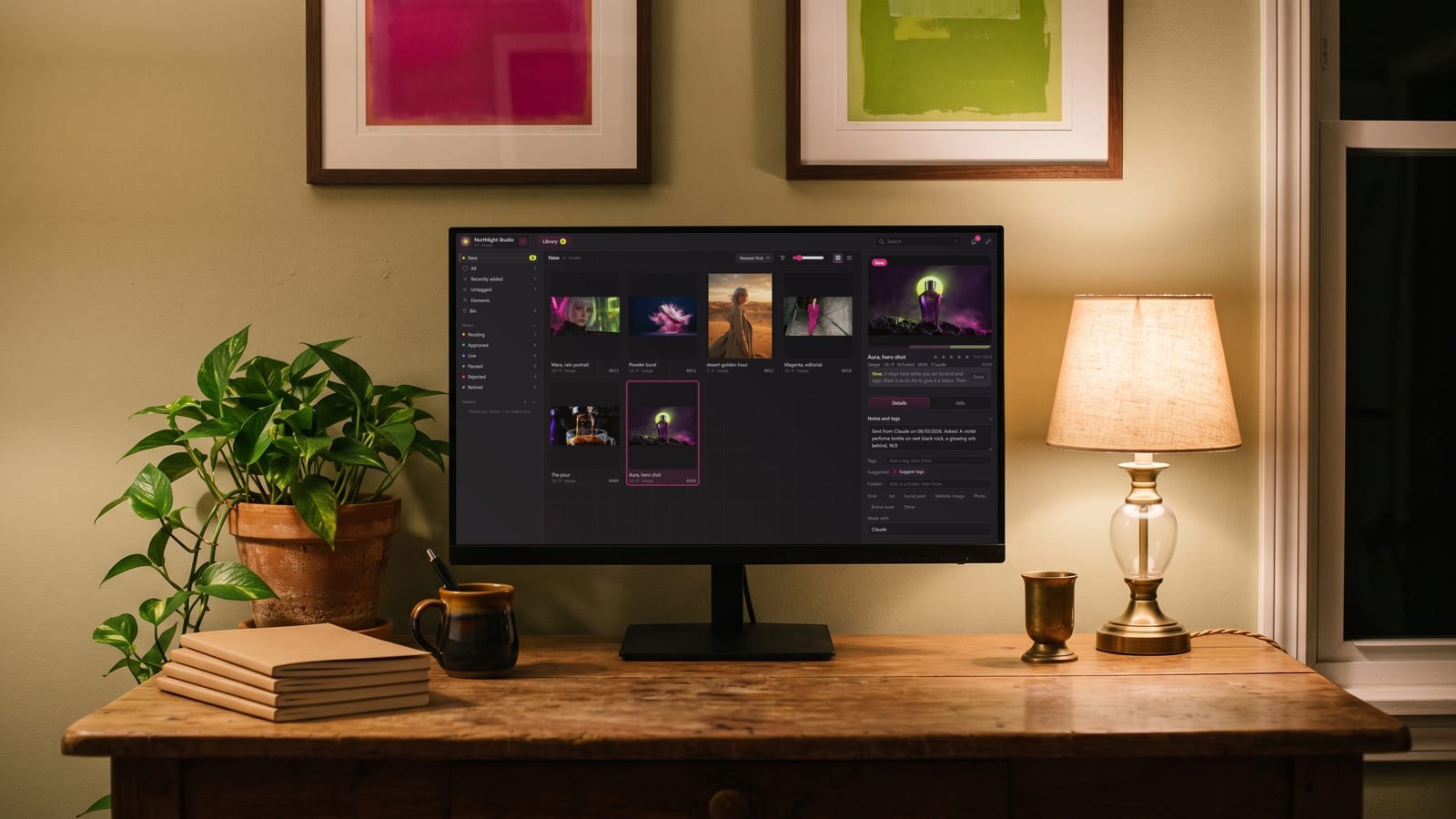
When a clip still warps after a few tries, go back a step rather than rewording the prompt again. Change the still: simplify it, remove the motion cues, give the subject more room. Fixing the start frame usually does more than another round of rewording.
Questions people also ask
Why does my AI video morph or warp?
Usually because the model is being asked to invent too much: a large camera move and a large action at once, a busy or flawed start image, or a prompt that fights what the picture shows. Runway's guides recommend one primary movement, a high-quality image free of artefacts, and prompts about motion only; its photo to video guide adds that one clear action works better than several rushed ones.
Should I describe the image in my image to video prompt?
No. Runway's Gen-4 prompting guide says to use the prompt to describe motion and to refer to people in general terms, such as "the subject", so the model doesn't reinterpret what's already in the picture. The image sets the look; the prompt sets what happens.
What is a start and end frame in AI video?
It's two pictures, one for the first frame and one for the last, with the model making the motion between them. Kling offers it as Add End Frame in Image to Video, and Google's Veo 3.1 API takes a last frame alongside the starting image. Kling advises two similar images, since large differences may trigger a shot switch.
How long should an image to video prompt be?
Runway's photo to video guide (5 November 2025) suggests roughly 20 to 40 words, built as camera movement, then scene action, then atmosphere. Shorter prompts lack direction and longer ones tend to overload the model.
How do I make a longer AI video from one image?
Make it shot by shot. Higgsfield's Kling help page suggests using the final frame of one scene as the start frame of the next, and Veo 3.1 can extend its own clips by 7 seconds at a time, up to 20 times, according to Google's API docs.
Sources
- Runway: Photo to video tips (5 November 2025)
- Runway Help Center: Gen-4 Video Prompting Guide
- Google AI for Developers: Generate videos with Veo 3.1 in the Gemini API
- Google AI for Developers: Video generation overview (updated 30 June 2026)
- Kling AI: Start and End Frames (24 November 2025)
- Kling AI: Kling 4.0 AI video model (30 September 2026)
- Higgsfield Help Center: How do I use Kling?
- ByteDance Seed: Introducing Seedance 2.5 (31 July 2026)