
Gemini Omni Flash: Google's video model you edit by talking to it
Gemini Omni Flash is Google's video model for making clips from text, pictures and video, then changing them one plain instruction at a time; version 1.1, out on 27 August 2026, adds scene extension, start and end frames and 4K. This page sets out what it does, where it falls short, how it differs from Veo 3.1, and every place you can use it, including free in Google Vids, as of 9 October 2026.
Gemini Omni Flash is a video model you keep talking to
Gemini Omni is Google DeepMind’s new family of models, announced at Google I/O 2026, which Google describes as able to “create anything from any input”, starting with video. Gemini Omni Flash is the first model in it. You give it text, pictures or a short video and it makes a clip with sound. Then, instead of starting again, you tell it what to change: remove a car, swap a character, move the camera, make it night. Each instruction builds on the last, in the same scene.
Google DeepMind’s model page puts it simply: Omni Flash is like Nano Banana for video, where each edit builds on the one before. That is the real change. Most video models give you a fresh roll of the dice every time you rewrite the prompt; this one keeps the scene and changes what you ask.
The dates, from Google’s own posts and release notes:
| Date | What happened |
|---|---|
| Google I/O 2026 | Omni Flash announced, in the Gemini app and Google Flow for paying subscribers, and free in YouTube Shorts and YouTube Create |
| 30 June 2026 | Public preview for developers in the Gemini API and Google AI Studio |
| 27 August 2026 | Gemini Omni 1.1 Flash: the stable version, with scene extension, start and end frames, 360p drafts and 4K |
| 23 September 2026 | Omni 1.1 free in Google Vids for anyone with a Google account |
What it can do, from Google’s own pages
This is from Google’s Gemini API documentation and its 27 August 2026 post, read on 9 October 2026. We haven’t run our own tests. The other places you can use it set their own limits (see below).
| Gemini Omni 1.1 Flash | |
|---|---|
| Clip length | 3 to 10 seconds per generation, at 24 frames a second |
| Longer scenes | Extend in 10-second steps, up to 40 seconds in all |
| Resolution | 360p drafts, 720p as standard, 1080p and 4K upscaled |
| Shapes | 16:9 (the default) and 9:16 |
| Inputs | Text, pictures, and video of up to 10 seconds to edit or extend |
| Start and end frames | Yes, from version 1.1 |
| Video references | Up to three seconds of video |
| Sound | Made by default, including music and effects you describe |
| Watermark | SynthID on every clip |
A few of these deserve a word.
Editing is the point. The API page lists five jobs it can do: text to video, picture to video, video from references, editing and extending. Google’s advice is to let the prompt decide rather than choosing a mode. In the Gemini app, the help page’s examples of edits are removing or replacing objects and characters, changing camera angles and changing the scene.
Extension keeps the scene. Google’s 27 August post says the model reads up to 10 seconds of what came before when it continues a clip, so lighting, characters and setting carry on. Extension only adds to the end.
Drafts are cheap and quick. The 360p option is, Google says, up to 60% faster than 720p and a third of the cost, so you can try ideas small and upscale the one you keep.
It knows the world. Google DeepMind’s page says Omni Flash uses Gemini’s knowledge of physics and context, and can keep on-screen text in time with what happens.
Where it falls short
Google’s documentation is plain about the edges, as of 9 October 2026:
- Editing your own footage is region-locked. The Gemini Apps Help page says uploading videos to edit “isn’t available in the EEA, Switzerland, the United Kingdom, and some US states”. The API documentation also restricts editing and extending uploaded videos, and uploading pictures of children, in the EEA, Switzerland and the UK. If you are in Britain, you can make and edit Omni’s own clips, but not upload yours.
- Some people can’t be used. The API documentation says certain recognisable people can’t be uploaded or edited.
- Sound has limits. You can’t edit voices, or upload audio as a reference, through the API. You can’t extend an uploaded video to add dialogue. In the Gemini app, your own voice and likeness come only through Google’s avatar feature.
- Fewer knobs than you may be used to. No negative prompt, no temperature, and no system instructions. Everything goes in the prompt.
- English works best. Google says English is fully supported and other languages may give mixed results.
- Characters can drift. Google’s 30 June post on the preview said character consistency had limits when the scene changes or the camera pans. Version 1.1’s extension and start and end frames are aimed at this, but keep your references to hand.
Where you can use it
As of 9 October 2026:
- Google Vids, free. Since 23 September 2026, Google’s post says, anyone with a Google or Google Workspace account can make videos there with Omni 1.1 at no cost, at vids.new on a computer, in 1080p, with scene extension and a choice of exact clip length. Google gives no monthly limit in the post; more comes with a Google AI plan.
- The Gemini app. Google’s help page says you need a Google AI plan on a personal account, and you must be 18 or over. Choose Video, or plan the idea in chat first. Version 1.1’s scene extension came to the app on 27 August 2026 for Google AI Plus, Pro and Ultra.
- Google Flow, Google’s filmmaking tool, has the full set of 1.1 controls: start and end frames, 360p drafts, and export in 1080p or 4K, for Google AI Plus, Pro and Ultra subscribers worldwide.
- YouTube Shorts and YouTube Create, free from launch, according to Google’s announcement.
- The Gemini API and Google AI Studio, for developers, as
gemini-omni-1.1-flash. The preview model,gemini-omni-flash-preview, was due to be retired on 30 September 2026, so code using it needs moving. - Higgsfield has a Gemini Omni Flash page for version 1.1, with its usual strength of putting it next to many other video models under one account. Its page describes 720p output with a 1080p upscale, and some of its other figures differ from Google’s documentation, so check the settings in the generator itself.
- Runway offers it to Standard plans and above. Its page says clips of 3 to 10 seconds at 720p, a pinned first frame, up to 10 reference pictures, and an edit mode for footage up to 10 seconds long.
- Adobe Firefly offers it in Firefly Boards, Generate Video and the iPhone app, at up to 720p and 10 seconds, with clips you can send on to Premiere.
Notice the pattern: Google’s own tools offer 1080p and 4K, while the other platforms’ pages we read on 9 October 2026 list 720p (Higgsfield adds a 1080p upscale). If resolution matters for the job, that may decide where you run it. For costs, see Google’s Gemini API pricing page, Google’s AI plans, or the pricing page of the platform you use.
Omni Flash or Veo 3.1?
Veo 3.1 is still there. Google released it on 15 October 2025, with extension, up to three reference pictures and first and last frames, and added a cheaper Veo 3.1 Lite, as a preview, on 31 March 2026, according to the Gemini API release notes.
Google’s video overview (updated 30 June 2026) says to “use Gemini Omni Flash as your default model for video generation”, and to pick Veo 3.1 for scene extension, last-frame control or older pipelines. Since 27 August, Omni 1.1 does extension and start and end frames too, so for most people the choice now comes down to this:
- Pick Omni Flash when you want to change a clip rather than remake it, or edit footage you already have (outside the UK and EEA).
- Stay with Veo 3.1 when a workflow, a template or a client job is already built around it, and you need results to match what you made before.
Two tips from Google’s prompt guide, read on 9 October 2026, help either way. Ask for “single continuous shot” and “no scene cuts” when you want one take. When editing, add “keep everything else the same”, and change one thing per instruction. Google also suggests timing events with plain words or timecodes such as [0-3s], putting any on-screen words in quotes, and describing sound if you want it. Our guide to turning a picture into a video covers start frames and camera wording in more detail.
Keeping what you make with it
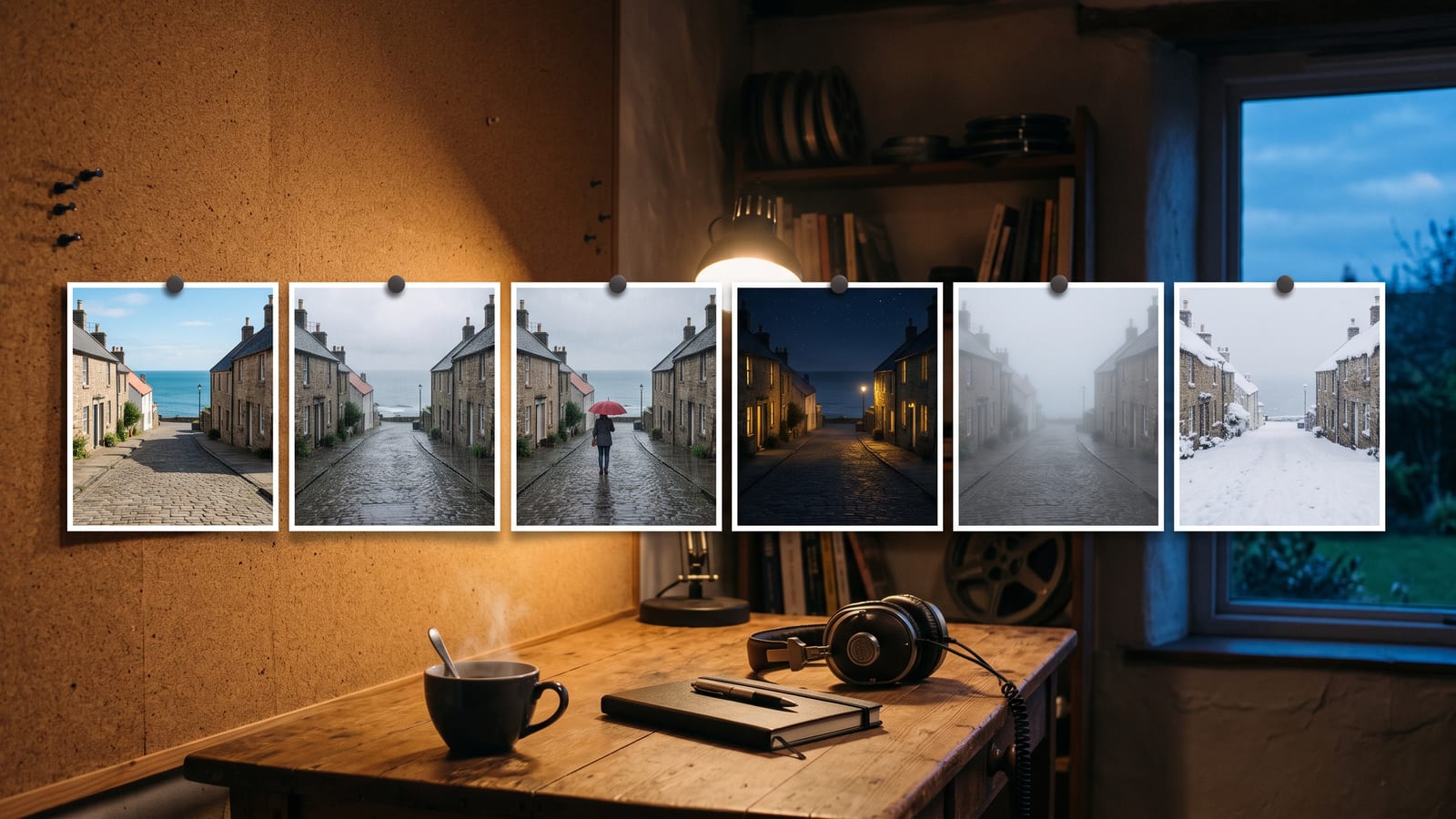
A model you edit by conversation makes a lot of near-identical takes: the first version, the rainy one, the one where the car is gone, the 360p draft and the 4K export. They end up spread across a Gemini chat, a Flow project, Vids and your downloads folder. Download the takes you mean to keep, and name them with the model and the change, so you can find “Omni 1.1, night version” again next month. Our guide to where AI pictures and videos are saved covers each platform’s history.
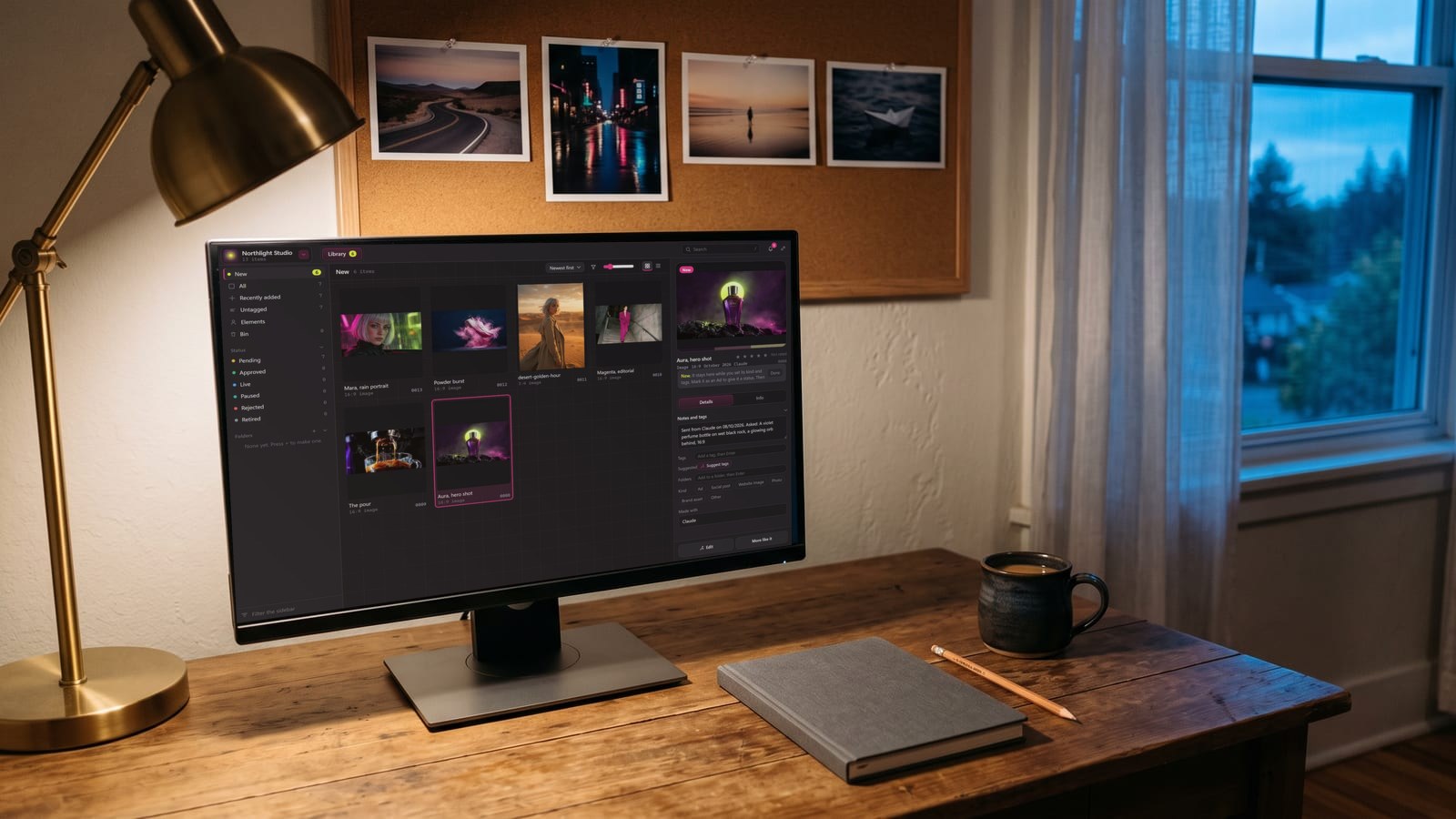
BosOn’s Gemini connection covers Nano Banana 2 pictures and Lyria music, not Omni (see the integrations page). But you can drop clips from anywhere into its library and keep them next to everything else you make. BosOn is in early access.
We will update this page when Google changes Omni’s limits or regions, or releases the next Omni model.
Questions people also ask
Is Gemini Omni Flash free?
In Google Vids, yes: since 23 September 2026 anyone with a Google or Google Workspace account can make videos there with Gemini Omni 1.1 Flash at no cost, according to Google. Using it in the Gemini app needs a Google AI plan, and Google's 27 August 2026 post names Google AI Plus, Pro and Ultra for Flow. YouTube Shorts and YouTube Create also offered it free at launch.
How long can a Gemini Omni Flash video be?
Each generation is 3 to 10 seconds, according to Google's API documentation (read 9 October 2026). With version 1.1 you can extend a scene in 10-second steps up to 40 seconds in all; the model reads up to 10 seconds of what came before to keep it continuous.
What is the difference between Gemini Omni Flash and Veo 3.1?
Veo 3.1, released in October 2025, makes video with sound from a prompt and reference pictures. Omni Flash adds conversational editing: you keep changing the same clip with follow-up instructions, and it can edit video you upload. Google's video overview (30 June 2026) recommends Omni Flash as the default, and Veo 3.1 for scene extension, last-frame control or existing pipelines; Omni 1.1 has since added the first two.
Can I edit my own videos with Gemini Omni Flash in the UK?
Not as of 9 October 2026. Google's Gemini Apps Help says uploading videos to edit isn't available in the EEA, Switzerland, the United Kingdom and some US states, and the API documentation restricts editing and extending uploaded videos in the same regions. Making and editing clips Omni generated for you is not affected.
Does Gemini Omni Flash add a watermark?
Yes. Google says every video made or edited with Omni carries an invisible SynthID watermark, and its model page adds C2PA Content Credentials. You can check a video in the Gemini app, Gemini in Chrome and Google Search.
Sources
- Google DeepMind: Gemini Omni
- Google (Latin America): Presentamos Gemini Omni
- Google: Start building with Nano Banana 2 Lite and Gemini Omni Flash (30 June 2026)
- Google: Gemini Omni 1.1 Flash lets you build with more control (27 August 2026)
- Google: New creative controls in Google Flow (27 August 2026)
- Google: Anyone can make stunning HD videos with Gemini Omni in Google Vids (23 September 2026)
- Gemini API docs: Gemini Omni Flash model page
- Gemini API docs: Gemini Omni Flash
- Gemini API docs: Video overview
- Gemini API docs: Release notes
- Gemini Apps Help: Generate videos with Gemini Apps
- Higgsfield: Gemini Omni Flash
- Runway: Gemini Omni Flash on Runway
- Adobe: Gemini Omni in Firefly