
Is there a Higgsfield desktop app for Windows or Mac?
No. Higgsfield's own help centre says it has no desktop app and no mobile app, and that any downloadable app presenting itself as Higgsfield is a copy. This guide shows what is official as of 10 October 2026, how to make the website behave like an app on Windows and Mac, and how to tell a copy from the real thing.
No: Higgsfield runs in your browser, and says so itself
People search for a Higgsfield desktop app, a Windows app, a Mac app and a PC download every day, and the straight answer comes from Higgsfield. Its help page, What are the official Higgsfield platforms?, updated on 24 September 2026, says Higgsfield has no mobile apps and no desktop app, and that the website is the only official Higgsfield platform. It adds that any downloadable app presenting itself as Higgsfield is a copy, wherever it’s listed and whatever it promises.
That isn’t a gap so much as a choice. Everything Higgsfield makes is generated on its own servers, so a browser on any computer gets the full platform, with nothing to install or update. What Higgsfield does offer beyond the website is a short, official list:
| Official | What it is | Where |
|---|---|---|
| The website | The whole platform: every tool, model and preset, and your Assets | higgsfield.ai |
| Plugins | Higgsfield tools inside Premiere Pro and After Effects | higgsfield.ai/plugins |
| The API | Pay as you go, for developers and other apps | open.higgsfield.ai, docs.higgsfield.ai |
| MCP | A connector that lets AI assistants such as Claude and ChatGPT make pictures and video on your account | higgsfield.ai/mcp |
If you were hoping for a desktop app because you want Higgsfield in its own window, the next two sections do that in under a minute, using your browser’s own feature.
On Windows: install the website as an app in Edge or Chrome
Both browsers that come with or are common on Windows can turn a website into something that behaves like an app: its own window, its own icon, and a place on the taskbar.
In Microsoft Edge (from Microsoft’s support page):
- Go to higgsfield.ai and sign in.
- Open Settings and more (the three dots), then More tools, Apps, Install this site as an app.
- To keep it handy, go to
edge://apps, choose Details on Higgsfield’s card, then Pin to taskbar, Pin to Start or Create Desktop shortcut.
In Google Chrome (from Google’s help page):
- Go to higgsfield.ai and sign in.
- Open More (the three dots), then Cast, save and share, Install page as app. On some sites an install icon also appears at the right of the address bar.
- It opens from your desktop or taskbar, and every installed app is listed at
chrome://apps.
Either way it’s still the real Higgsfield website, signed in as you, so it has every feature the moment Higgsfield ships it. To remove it, Edge’s Details page and Chrome’s three dots menu both have Uninstall.
If you edit video, Higgsfield’s official plugins for Premiere Pro and After Effects are the nearest thing to a Windows app. The page says they support Windows 10 and 11 (64-bit only) and Premiere Pro or After Effects 2025 (version 25.0) or newer, and they put Reframe, Remove Background, Upscale, Draw to edit and Edit Video in a panel inside the editor. You sign in from the panel, they need an internet connection, and they use the same credits as the website.
On a Mac: Add to Dock in Safari, or use Chrome
On macOS Sonoma 14 or later, Safari can do the same thing. Apple’s support page on Safari web apps gives the steps:
- Open higgsfield.ai in Safari.
- Choose File, Add to Dock, or click the Share button and choose Add to Dock.
- Name it and click Add.
The web app sits in your Dock and in the Applications folder in your home folder, and opens from Spotlight. Apple notes that it runs on its own, without sharing Safari’s history, cookies or settings, so you sign in to Higgsfield once inside it. If Higgsfield sends notifications and you allow them, the Dock icon shows a badge. To remove it, drag it from that Applications folder to the Bin.
Chrome’s Install page as app works on a Mac in the same way as on Windows. And the Premiere Pro and After Effects plugins run on Macs too: Higgsfield’s page says the installer runs natively on Apple chip and Intel Macs.
How to tell a Higgsfield copy from the real thing
Search for a Higgsfield download and you’ll find installers on GitHub, download sites and Android emulator pages using Higgsfield’s name. By Higgsfield’s own rule, none of them is Higgsfield. Its help page lists the signs of a copy, and if even one matches, what you found isn’t Higgsfield:
- The address isn’t exactly higgsfield.ai, or Higgsfield’s name appears inside someone else’s site.
- Sign in doesn’t happen on higgsfield.ai, or a site or app asks for your Higgsfield password.
- Payment doesn’t go through the website, or the offer is a lifetime plan, a transferable account or a resold subscription.
- It offers free Higgsfield generations anywhere other than the website.
The page also says an MCP connector at any address other than mcp.higgsfield.ai/mcp is not Higgsfield. If you’ve already typed your password or card details into a copy, Higgsfield asks you to contact its support team at higgsfield.ai/contact with a link and a screenshot, and to reset your password with Sign in, Forgot password on higgsfield.ai (or to secure your Google, Apple or Microsoft account if that’s how you sign in).
If you want a desktop app that works with your Higgsfield plan
Some people searching for a desktop app want something the website can’t give them: one place on their own computer that holds their Higgsfield work next to everything they make in ChatGPT, Gemini and other tools. That’s what we built BosOn for, so to be clear about what it is: BosOn is not Higgsfield and doesn’t present itself as Higgsfield. It’s our own desktop app, independent and not affiliated with or endorsed by Higgsfield, that connects to the Higgsfield account you already have.
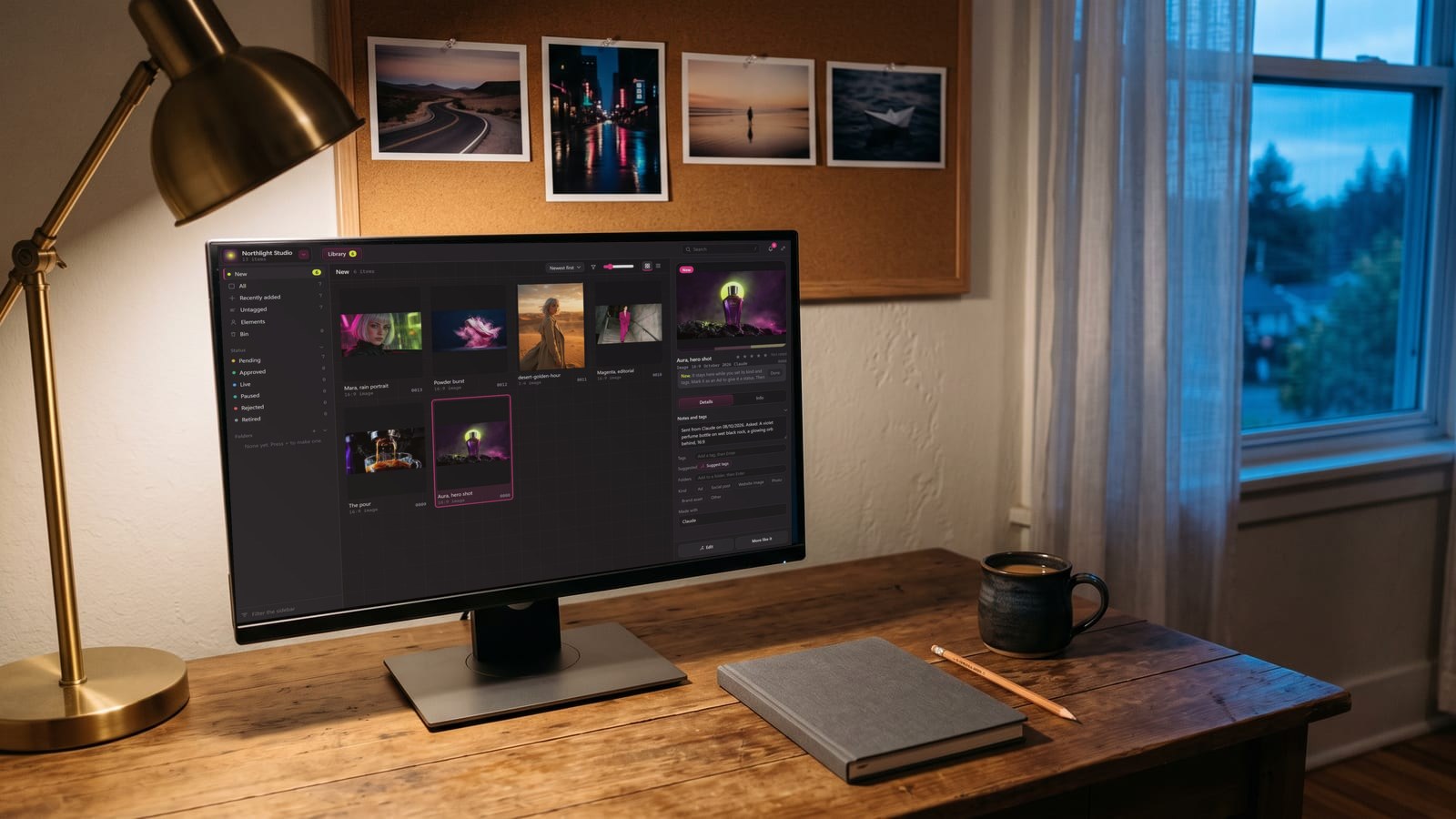
How it connects matters, given the list above, so here it is plainly:
- Your Higgsfield plan connects through Higgsfield’s official MCP server at
mcp.higgsfield.ai, the same way Claude and ChatGPT connect. Clicking Connect opens Higgsfield’s own sign-in page, on a higgsfield.ai address, in your browser. BosOn never sees your password, and the app asking is named as BosOn. - The Higgsfield API connects with a key you make in Higgsfield’s own console, for pay as you go.
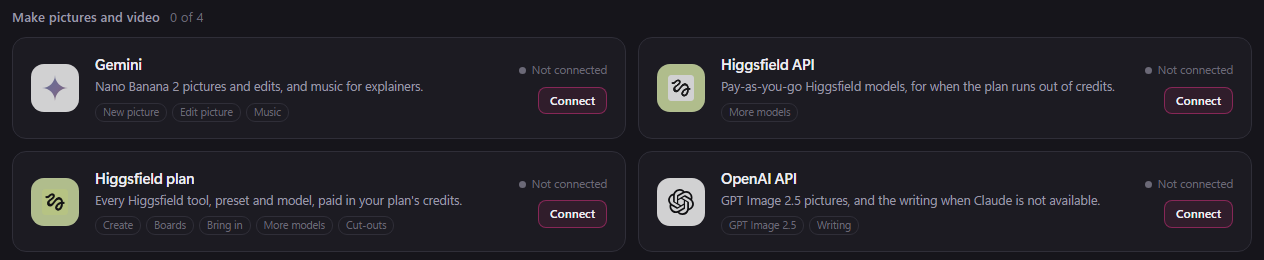
Once connected, BosOn can run your plan’s models from its own prompt bar, paid in your plan’s credits, and bring the pictures already in your Higgsfield account into one library with one click, next to your files from everywhere else. It runs on Windows 10 and 11 and on Macs with an Apple chip or Intel, and it’s in early access. What it connects to today is on our integrations page, and if you’re still deciding where to keep what you make, our guide to where AI tools save your images covers Higgsfield’s Assets and the rest. And if you’re weighing Higgsfield against another platform, we’ve set it side by side with Magnific, OpenArt and Leonardo.
Questions people also ask
Is there an official Higgsfield app for Windows?
No. Higgsfield's help centre, updated on 24 September 2026, says Higgsfield has no desktop app and that the website is its only official platform. On Windows you use it in a browser, and you can give it its own window with Edge's Install this site as an app or Chrome's Install page as app.
Is there a Higgsfield app for Mac or MacBook?
No. Higgsfield has no desktop app for any computer, Mac included. On macOS Sonoma 14 or later you can open higgsfield.ai in Safari and choose File, Add to Dock, which gives it its own icon and window. Its plugins for Premiere Pro and After Effects do run on Apple chip and Intel Macs.
Does Higgsfield have an iPhone or Android app?
No. Higgsfield's help page on its official platforms says it has no mobile apps and no desktop app, and that any downloadable app presenting itself as Higgsfield is a copy, wherever it is listed.
Are the Higgsfield desktop apps on GitHub and download sites safe?
Higgsfield says any downloadable app that presents itself as Higgsfield is a copy, and that a site or app asking for your Higgsfield password is not Higgsfield. We haven't tested them. If you entered your password or card details in one, Higgsfield asks you to tell its support team at higgsfield.ai/contact and to reset your password on higgsfield.ai.
Can I use Higgsfield inside Premiere Pro or After Effects?
Yes. Higgsfield makes official plugins for Premiere Pro and After Effects 2025 (version 25.0) or newer, on Windows 10 and 11 (64-bit) and on Apple chip and Intel Macs. They need a Higgsfield account and an internet connection, and use the same credits as the website.
Sources
- Higgsfield Help Center: What are the official Higgsfield platforms? (updated 24 September 2026)
- Higgsfield: Plugins for Adobe Premiere Pro and After Effects
- Higgsfield: MCP
- Microsoft Support: Install, manage, or uninstall apps in Microsoft Edge
- Google Chrome Help: Use web apps
- Apple Support: Use Safari web apps on Mac